

THIS TUTORIAL WORKS WITH ANY NOKIA CELLPHONE
 TRIED AND TESTED
 NOTE:
*TRIED & TESTED working on WINDOWS XP. SURE NA SURE YAN
USE WINDOWS XP.
HINDI 100% COMPATIBLE ANG PHOENIX sa WINDOWS 7
* BACK UP YOUR PHONE MEMORY (Contacts, Calendar, Messages stored in Phone Memory, etc.). Phone memory will be deleted after firmware update. After update, you need to hack again your cp.
*TRIED & TESTED working on WINDOWS XP. SURE NA SURE YAN
USE WINDOWS XP.
HINDI 100% COMPATIBLE ANG PHOENIX sa WINDOWS 7
* BACK UP YOUR PHONE MEMORY (Contacts, Calendar, Messages stored in Phone Memory, etc.). Phone memory will be deleted after firmware update. After update, you need to hack again your cp.
 READ & FOLLOW MY SCREENSHOTS
 Things you need:
1. Your NOKIA CELLPHONE with FULL BATTERY.
2. Compatibe Nokia USB cable.
3. Nokia PC Suite (Version 7.1)
4. Phoenix Software (CREDITS TO XXIV_19).
5. Latest Firmware from Blue Nokia.
6. Desktop/Laptop with internet connection.
STEP 1.
1. Download and install Nokia PC Suite Vesion 7.1 --> CLICK ME!
STEP 2:
1. Turn off your cp --> remove battery --> look where your cp was manufactured --> note also the RM version & the 7 digit product code
(Ex. Made in China, RM-346, Product code - 0576672)
2. Turn on your cp. Check the firmware installed --> dial *#0000#.
3. Download & Install your LATEST FIRMWARE ---> DOWNLOAD HERE: CLICK ME! --> On Blue Nokia website (upper right screen) choose phonetype
(Ex. select E71)
- Choose APAC for cellphones made in Asia. If APAC is not available, you can use EMEA.
- Choose EMEA/MEA if it was made in Europe, the Middle East and Africa.
[Ex. E71 --> E71 -1 (RM-346) 500.21.009 v10 (APAC)]
STEP 3
1. Download Phoenix Software(Pili lang kayo ng 1 diyan. Parehas na Phoenix yan, magkaibang url link lang.)
--- Download link option 1 ---> CLICK ME!
--- Download link option 2 ---> CLICK ME!
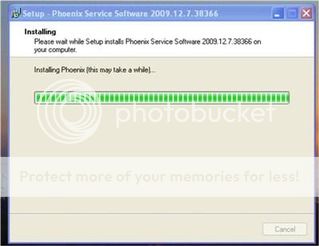
2. Install Phoenix Software (follow my screenshots)


NOTE: PAG MAY NAG-APPEAR NA ERROR ON INSTALLATION --> JUST CLICK CONTINUE ANYWAY
STEP 4
1. Open Nokia PC Suite.
2. Connect your cp using compatible Nokia USB Cable. Connection type: PC Suite
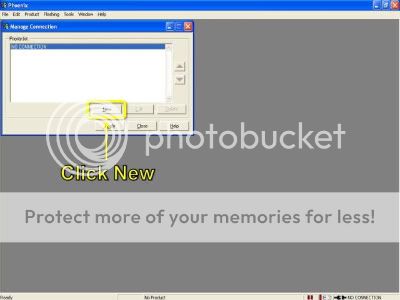
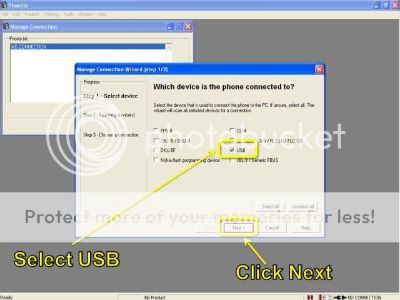
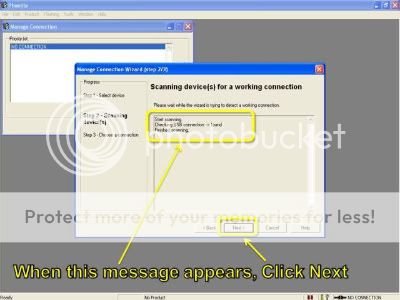
3. Open Phoenix
(PLEASE FOLLOW MY SCREENSHOTS!!!)


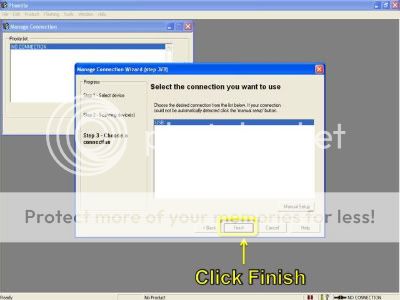

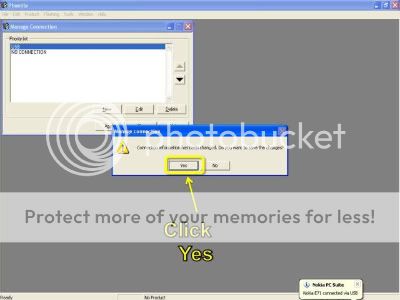

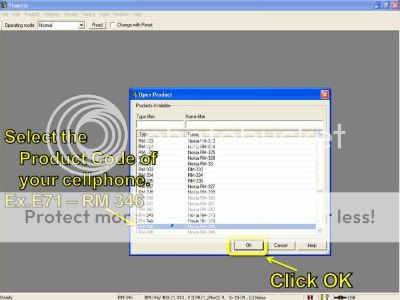
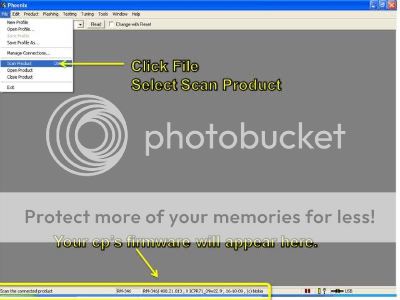
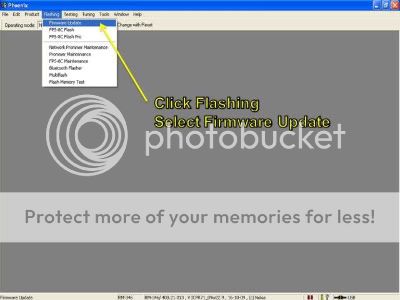

NOTE: If you want to change your PRODUCT CODE: Click the box w/ 3 small dots on the RIGHT SIDE of PRODUCT CODE BAR
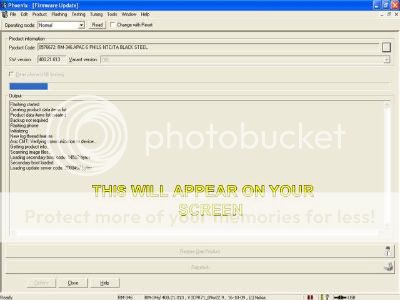
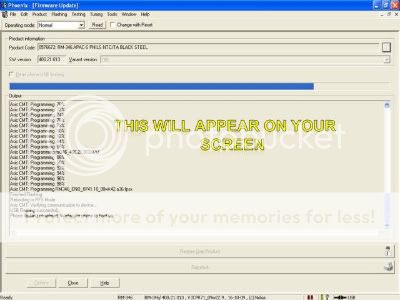

 CONGRATS! UPDATED NA FIRMWARE MO
IF EVER MAGING SUCCESSFUL ANG UPDATE NIYO PERO AYAW BUMUKAS NG CP NIYO --> HANGGANG WHITE SCREEN LANG
MAY SOLUSYON KAGAD DIYAN. --->____________________________________________________________
100% WORKING!
A W E S O M E DEAD PHONE? BUHAYIN NATIN YAN!
DEAD PHONE FLASHING -- REVIVE YOUR PHONE! (Tutorial)
NOTE:
- 100% Working on WIN XP.
- Tried it on WIN7, ONLY 2 out of 5 success rate.

- You will ONLY need internet for downloading the files. After installing all files, NO NEED FOR ACTIVE INTERNET CONNECTION while doing the flashing.
YOU'LL NEED:
1. Compatibe Nokia USB cable.
2. Phoenix Software(CREDITS TO XXIV_19).
3. LATEST Firmware from Blue Nokia.
4. Your DEAD NOKIA CELLPHONE.
DEAD PHONE MEANS
- When you turn on your cellphone you only have White Screen but it WILL NOT CONTINUE TO TURN ON.
- VIBRATE ONLY but no WHITE SCREEN - this is a different case. You may have hardware problem. You can still try this tutorial since you have nothing to lose.
INSTRUCTIONS:
1. Turn off cp -> remove battery -> look where your cp was manufactured -> note the RM version & the 7 digit product code
(Ex. Made in China, RM-346, Product code - 0576672)
2. Download & Install the compatible firmware version for your cp. --> go here BLUE NOKIA.COM -> On Blue Nokia website (upper right screen) choose phonetype
(Ex. select E52)
- Choose APAC for cellphones made in Asia. If APAC is not available, you can use SEAP/EMEA.
- Choose EMEA/MEA if it was made in Europe, the Middle East and Africa.
3. Download and Install PHOENIX.
DOWNLOAD HERE --> LINK 1, LINK 2
(Click only either LINK 1 or LINK 2. Both links have the same phoenix.)
NOTE: If any ERROR APPEARS ON INSTALLATION -> JUST CLICK CONTINUE ANYWAY.
READ & FOLLOW MY SCREEN SHOTS STEPS FOR DEAD PHONE FLASHING:


AFTER STEP 12. YOUR PHONE WILL START TO UNDERGO FLASHING.
AFTER SUCCESSFULLY FLASHING. IT WILL RESTART ON ITS OWN.
if not... JUST RESTART IT MANUALLY ---> THAT'S IT!!!
0 (mga) komento:
Mag-post ng isang Komento